What You Need to Make Your Swann Security Recorder Go Online
Last updated:
To access your Swann DVR, NVR, or MaxRanger4K™ Power Hub remotely, the recorder must be properly connected to your network and the internet. This guide explains what needs to be prepared and connected to get your recorder online quickly and reliably.
This applies if you’re setting up a new system, reconnecting after a network change, or troubleshooting remote access issues.
Common Questions / Variations
- How do I connect my Swann DVR or NVR to the internet?
- Why is my Swann recorder offline?
- What do I need to make my Swann recorder go online?
- How do I check if my Swann recorder is ready for remote access
Before you proceed, choose what type of recorder do you have:
What Are the Things to Prepare?
Short answer: You need a router with an active internet connection and a proper network connection between the recorder and the router.
What to prepare:
- A working router with internet access
NOTE: Not all internet connection are equal. For more information, see Best Internet Connection for Security Cameras: A Complete Guide - An Ethernet cable (recommended)
- A monitor and mouse connected to the recorder (for setup checks)
Step-by-step Guide
DVR/NVR Must Have The Latest Firmware
Follow these steps:
- Get the model number and firmware version of your recorder
- Enter the model number in this article
- Verify if your recorder has the latest firmware version
- YES → proceed below
- NO → update it first, then proceed below
Connect a DVR, NVR, or MaxRanger4K™ Power Hub to the Network
Short answer:
- Connect the Ethernet cable to the recorder on its LAN (or WAN in NVR) port.
- Grab the other end of the cable and connect it to your router's LAN port
How it works: By default, Swann DVRs, NVRs, and MaxRanger4K™ Power Hubs use DHCP, meaning the router automatically assigns an IP address.
In most cases, this works instantly. If the recorder does not obtain an IP address, a quick reboot of the recorder usually resolves the issue.
Connect an NVW System to the Network
Short answer:
NVW systems can connect wired using Ethernet cable, or wirelessly on 2.4 GHz Wi-Fi.
Go to Main Menu > Network > Connection then set Mode to Wired or Wi-Fi and make sure DHCP is checked.
If you chose Wired, click to save.
Steps for Wireless Connection
- Click to detect available networks.
- Select your Wi-Fi network then click
- Enter its password
- Click and confirm Link Status: Connected
- Click to save the settings.
Steps for Wired Connection (recommended)
- Connect the Ethernet cable to the LAN port of the hub.
- Grab the other end of the cable and connect it to your router's LAN port
Once connected, verify that Agent Cloud Link Status also shows Connected.
Proceed below to know where to find it.
Confirm If Your Recorder Is Online
Short answer:
- Check if this icon shows on your recorder. Right-click to show the Menu bar; OR
- Check the Agent Cloud Link Status on the recorder’s system menu.
See steps below:
Steps to check Agent Cloud Link Status:
- Go to Main Menu > System > Information
- Look for Agent Cloud Link Status
- Connected = Ready for remote access using the Swann Security app
- Disconnected = Network or internet issue
Using a Swann USB Wi-Fi Antenna (Optional)
Short answer:
Some Swann recorders support wireless setup using a compatible USB Wi-Fi antenna.
What to do:
If you’re using the Swann USB Wi-Fi antenna (SWACC-USBWIFI), follow the step-by-step guide below for proper setup:
See also: Wireless Setup with SWACC USB Wi-Fi for Swann Recorders
What to Do If The Recorder Is Still Offline
| Type of Recorder | Network Status Indicator |
|---|---|
| DVR, NVR, NVW, AdvancedX™, MaxRanger4K™ |
'Connected' or green check = online |
| EliteX™ |
Green check = online |
Short answer:
Restart ALL devices.
Recommended steps:
- Ensure you have followed the step-by-step guide above to complete the network setup.
- Reboot the recorder
- Reboot the router
- Reboot the modem
- Wait a few minutes and recheck the status
This refreshes the network connection and often resolves cloud connectivity issues.
Network Connection Methods Not Recommended
While these methods may work, they add extra points of failure and can cause connection issues:
| The following setup is not recommended: | Example: |
|---|---|
|
Double NAT: DVR / NVR to secondary router to the main modem/router In bridge mode, the secondary router is no longer acting as a router. |
| The following are not routers with LAN ports and are known to cause loss of connectivity in recorders due to network configuration or latency: | Example: |
|---|---|
|
Network switch or hub: To isolate, connect the recorder directly to the main router. This helps to ensure any connectivity issues are identified as being related to the recorder and router, and not caused by other equipment or peripherals. |
|
|
Wi-Fi extender or repeater: To isolate, connect the recorder directly to the main router. This helps to ensure any connectivity issues are identified as being related to the recorder and router, and not caused by other equipment or peripherals. |
|
|
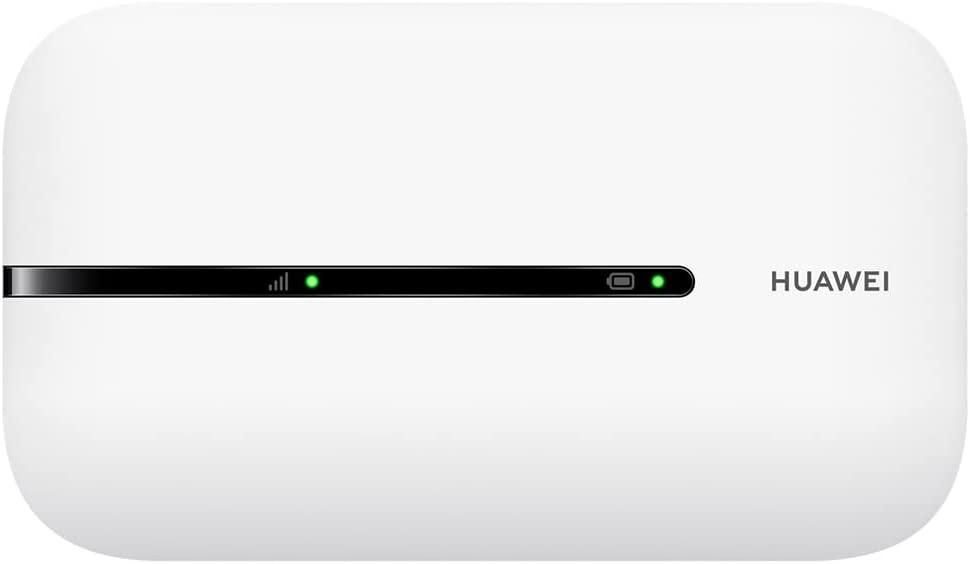
Pocket WiFi router: Most do not come with a LAN port and signal interference/bandwidth can impede remote streaming as DVRs and NVRs require higher bandwidth for 4-16 high-resolution cameras. |
 |
|
Wall extension: To isolate, connect the recorder directly to the main router. This helps to ensure any connectivity issues are identified as being related to the recorder and router, and not caused by other equipment or peripherals. |
- Network switches
- Wi-Fi extenders or repeaters
- Pocket Wi-Fi routers
- Ethernet wall jacks or sockets
For best results, always connect the recorder directly to the main router.
Why This Matters
A stable network connection is essential for remote viewing, notifications, and secure cloud communication. Proper setup ensures your Swann system stays accessible, reliable, and protected—whether you’re monitoring your home or business from anywhere.
Related Scenarios or Questions
- Recorder shows offline in the Swann Security app → Check your recorder's network connection
- No IP address on recorder → Ensure DHCP is enabled and reboot
- Wi-Fi not showing on NVW → Confirm 2.4 GHz is enabled on the router
- Remote access stopped working → Restart modem, router, and recorder
Summary & Next Steps
To make your Swann recorder go online, connect it directly to a router with internet access and confirm its taskbar icons shows a green check mark indicating its online status.
Remote access or mobile viewing only works when on the same network? Check out this article.