Please avoid using simple passwords like "admin" or "1234"; these common patterns are the first things hackers test, and using them leaves your personal data and account access vulnerable to instant automated theft.
Forgot your Swann recorder password? No problem—resetting it starts by getting your recovery code (usually the MAC address). This guide helps you find the right reset instructions based on your recorder model.
Step 1: Find Your Model Number
Before anything else, you'll need your recorder’s model number. Not sure where to find it? → View our guide
Once you have your model number, enter it below:
Samples:
❌ SWDVK-165580 → Enter "5580"
❌ SWDVR-165580 → Enter "5580"
❌ DVR-165580 → Enter "5580"
❌ DVR16-5580H → Enter "5580"
✅ DVR16-5580
Step 2: Get Your Recovery Code
Applies to the listed products
NVR-8EX, NNVR-16EX
If you can still stream your cameras using Swann Security app, you can get the recorder's password by tapping More then then tap Password to reveal the password. See detailed instructions here
Otherwise, using your phone's camera, take a picture of the recorder's QR code and upload it to this tool to get the Recovery Code.
Step 3: Enter Your Recovery Code
Here's how to enter Swann Security Recorder's Recovery Code:
From the login page of your recorder, click Forgot Password
Once it asks you "Choose an option to recover or reset your recorder password", select Recorder MAC Address
Enter the MAC Address following this format with colons (e.g. 12:ab:34:cd:56:ef) then click Next
To select the colon (:), click the /., button at the bottom-left to see the special characters, then look for the colon.
Help us improve! Take our quick survey and share
your feedback.
It only takes a minute.
If you can still stream your cameras using Swann Security app, you can get the recorder's password by tapping More then then tap Password to reveal the password. See detailed instructions here
Otherwise, choose an article to know how to get your Swann Security recorder's Recovery Code:
If you can still stream your cameras using Swann Security app, you can get the recorder's password by tapping More then then tap Password to reveal the password. See detailed instructions here
Otherwise, you can either:
Factory reset via reset button (enter you recorder's model in the other article) to reset all settings—including its password; or
Get and enter the Recovery Code to only reset its password—choose an article below, then proceed to Step 3:
If you can still stream your cameras using Swann Security app, you can get the recorder's password by tapping More then then tap Password to reveal the password. See detailed instructions here
Otherwise, use the QR Code Reader below, and follow its instructions to get your Recovery Code.
If you want other options, choose an article to know how to get your Swann Security recorder's Recovery Code:
Here's how to enter Swann Security Recorder's Recovery Code:
Right-click to open the Menu bar, click the Start button (bottom-left), then Unlock
Once the login prompt appears, click Forgot Password
Click Yes
Enter the MAC Address following this format (e.g. BC:51:FE:11:22:33) then click Unlock
A prompt will appear saying the password has been reset. Click OK to proceed in setting a new password.
Set a new password, then click Finish
A prompt will appear to confirm your action. Click OK to complete the set up.
Password Reset Guide
Step 2: Get Your Recovery Code
Applies to the listed products
DVR4-4680XU, DVR8-4680XU
If you can still stream your cameras using Swann Security app, you can get the recorder's password by tapping More then then tap Password to reveal the password. See detailed instructions here
Otherwise, use the QR Code Reader below, and follow its instructions to get your Recovery Code.
If you want other options, choose an article to know how to get your Swann Security recorder's Recovery Code:
Getting "No Email function can be enabled. Please verify the Email Address and check D/NVR has network connectivity before enabling this function." when clicking Forgot Password? Follow these steps instead
Step 3: Enter Your Recovery Code
Here's how to enter Swann Security Recorder's Recovery Code:
Right-click to open the Menu bar, click the Start button (bottom-left), then Unlock
Once the login prompt appears, click Forgot Password
Click Yes
Enter the MAC Address following this format (e.g. BC:51:FE:11:22:33) then click Unlock
A prompt will appear saying the password has been reset. Click OK to proceed in setting a new password.
Set a new password, then click Finish
A prompt will appear to confirm your action. Click OK to complete the set up.
Password Reset Guide
No option to enter Recovery Code
CAUTION! Only proceed if you are getting this error message after clicking Forgot Password
No Email function can be enabled. Please verify the Email Address and check D/NVR has network connectivity before enabling this function
Click the Image to Enlarge
Download and Prepare the Firmware
This also only applies to:
DVR4-4680XU with firmware version V1.0.10 and older
DVR8-4680XU with firmware version V1.0.8 and older
Download the correct firmware file for your recorder model:
Copy the extracted firmware files directly to the root directory of your USB flash drive.
Why this helps? Recorders can only detect firmware files if they are extracted and placed correctly on the USB drive.
Insert the USB Flash Drive into the Recorder
Plug the USB flash drive into the USB port on the recorder.
Confirm a USB mouse and monitor are still connected.
Why this helps? The recorder uses the USB port to automatically detect and install firmware during startup.
Reboot the Recorder
Unplug the recorder’s power adapter.
Wait 10–15 seconds.
Plug the power adapter back in.
Why this helps? Rebooting forces the recorder to check for firmware files on startup.
Wait for the Firmware Upgrade to Complete
The recorder will automatically begin flashing the firmware.
Do not remove the USB drive or power during this process.
Wait until you see the message: “Upgrade is successful.”
Once it is fully booted, try to click the Forgot Password again and check if you'll have additional option where you can enter its Recovery Code.
If the Firmware Update Doesn’t Start
Try the following before repeating the process:
Use a different USB flash drive (8–32GB recommended)
Reformat the USB drive to FAT32
Ensure firmware files are not inside a folder
Confirm the firmware matches your exact recorder model
Swipe left or right to navigate
Once flashing the firmware is complete, you can now do Step 2 and Step 3 to reset its password.
Step 2: Get Your Password or Factory Reset
Applies to NVW-MR4KSTN Base Station
If you can still stream your cameras using Swann Security app, you can get the recorder's password by tapping More then then tap Password to reveal the password. See detailed instructions here
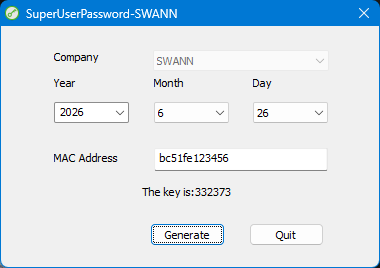
Enter the current date shown on your recorder's live feed
Enter the Recovery Code / MAC Address of the recorder like this - bc51fe123456
All in lower case
No special characters
Click Generate
Generate temporary password
Take note of the provided 'key' and use it as the password on your recorder. Once logged in, set a new password for your recorder and store it somewhere safe.
NOTE: If clicking the Forgot Password shows a random code, you need to use a generated code that will be entered in the Super Password field. Follow this article instead.